
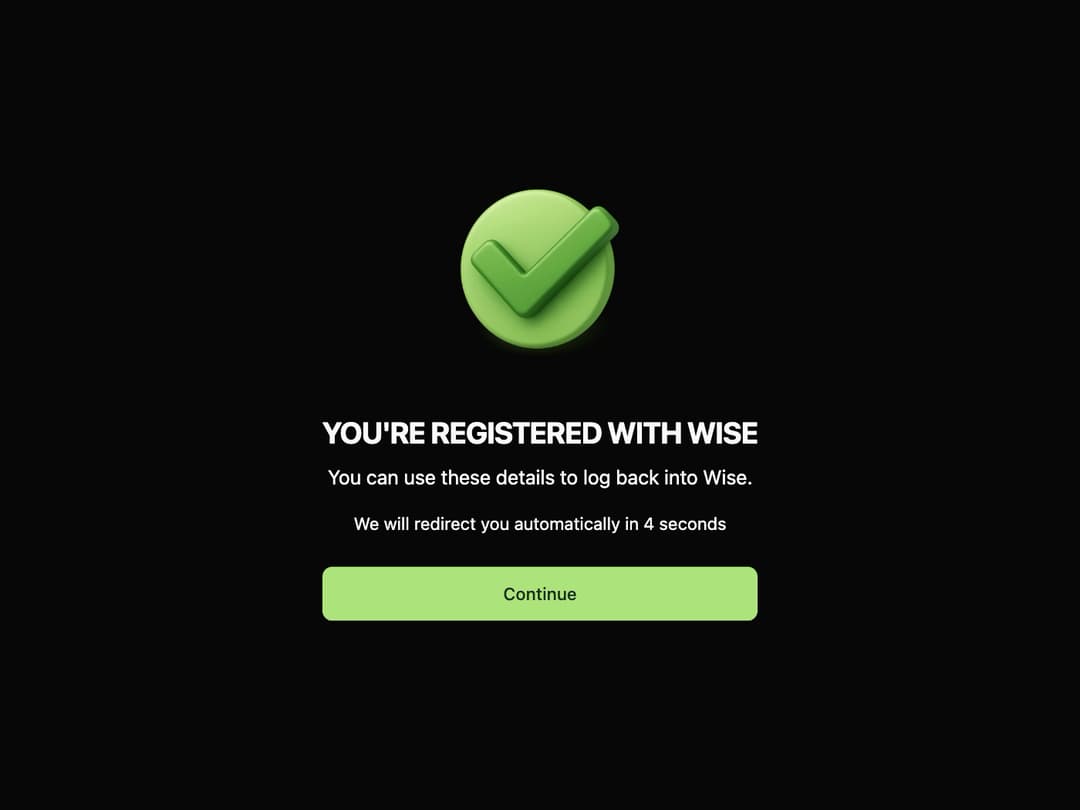
About
Built with React and Tailwind. Copy the prompt and paste it into Claude Code, Cursor or Lovable: your agent adds Status Screen to your project and fits it to your theme.
Code
How Status Screen is used: the demo's code. The component's own source comes with a free account.
Usage.tsx
import * as React from "react";
import { StatusScreen } from "@/components/ui/status-screen"; // Adjust path as needed

export default function StatusScreenDemo() {
  const handleRedirect = () => {
    console.log("Redirecting: Countdown finished! Navigating to dashboard.");
    // In a real app, you'd use react-router or window.location.href here
  };

  const handleContinue = () => {
    console.log("Continue Clicked: Skipping timer and navigating.");
  };

  /**
   * This style object overrides the default shadcn/ui CSS variables
   * to create the specific green theme seen in the "Wise" screenshot.
   * This is done in the demo, not the component, to maintain reusability.
   */
  const wiseThemeStyle: React.CSSProperties = {
    "--background": "hsl(140, 25%, 18%)", // Dark Green Background
    "--foreground": "hsl(100, 100%, 98%)", // Near-white text
    "--muted-foreground": "hsl(100, 15%, 80%)", // Lighter green-gray text
    "--secondary": "hsl(92, 70%, 70%)", // Light Green Button
    "--secondary-foreground": "hsl(140, 25%, 15%)", // Dark text on button
    "--ring": "hsl(92, 70%, 70%)", // Focus ring color
  } as React.CSSProperties;

  return (
    // Wrap the component in a div with the theme override
    <div style={wiseThemeStyle}>
      <StatusScreen
        logoSrc="https://wise.com/web-images/logo-inverse.svg"
        logoAlt="Wise Logo"
        title="YOU'RE REGISTERED WITH DD2K"
        description="You can use these details to log back into DD2K."
        buttonText="Continue"
        onButtonClick={handleContinue}
        redirectTextPrefix="We will redirect you automatically in"
        redirectSeconds={5}
        onRedirect={handleRedirect}
        icon={
          // The icon prop accepts any React node.
          // We use an <img> here to match the textured checkmark.
          // A placeholder is used for the complex textured check.
          <img
            src="https://www.thiings.co/_next/image?url=https%3A%2F%2Flftz25oez4aqbxpq.public.blob.vercel-storage.com%2Fimage-Vo9eMGewwrPkYkpbMH9ydaqQL5eNZm.png&w=1000&q=75"
            alt="Success Checkmark"
            className="h-50 w-50 rounded-lg object-cover"
          />
        }
      />
    </div>
  );
}
Dependencies
More by Ravi Katiyar
View all

Animated Shader Hero
3.7K
Hero
3.1K
Circular Gallery
2.7K
Minimalist Hero
2.5K
Floating Icons Hero Section
1.9K
Glass Calendar
1.8K
Feature Carousel
1.7K
AI Image Generator Hero
1.4K
More in Buttons
View all
Button Save
46

Button
20

Eclipse Button
5

Button
6

Button
14

Button Group
37

Button
32
Split Button
32

