
About
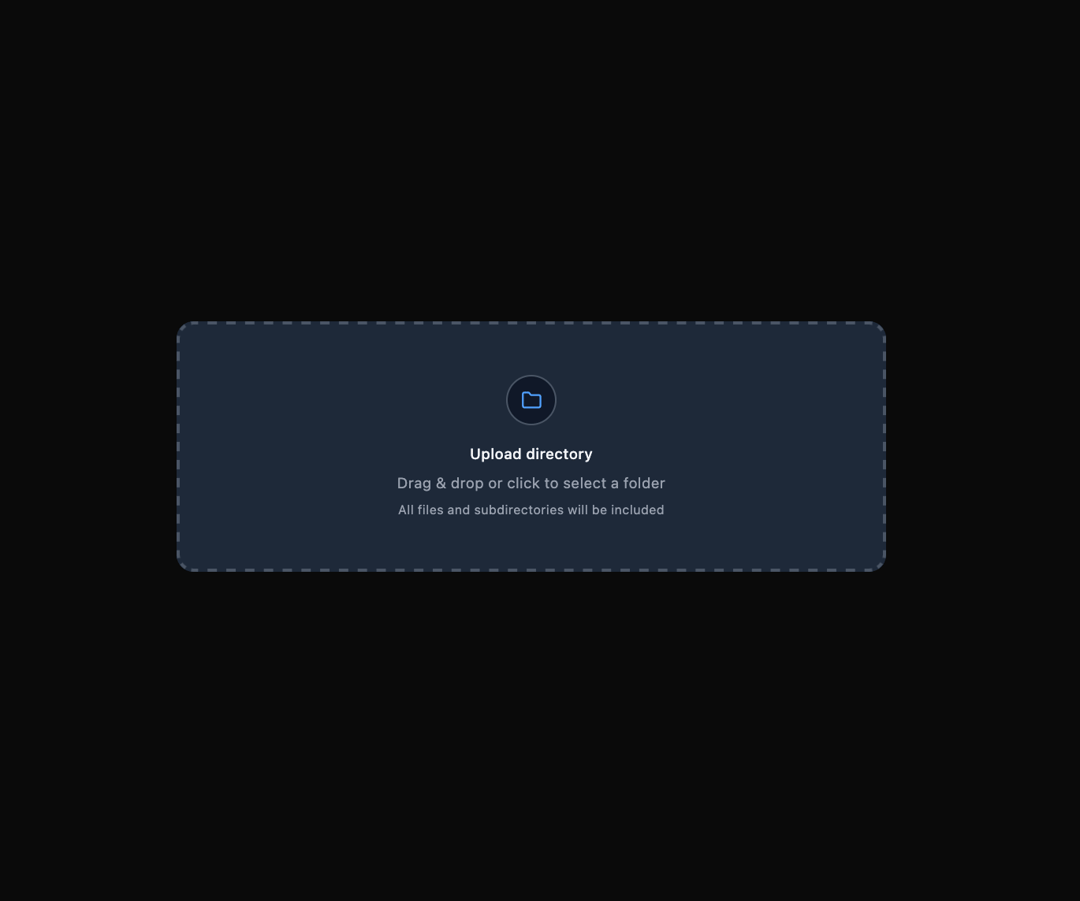
Here is File Upload component
Built with React and Tailwind. Copy the prompt and paste it into Claude Code, Cursor or Lovable: your agent adds File Upload to your project and fits it to your theme.
Code
How File Upload is used: the demo's code. The component's own source comes with a free account.
Usage.tsx
"use client";

import { FileUpload } from "@ark-ui/react/file-upload";
import { Folder, FolderOpen, FileText, X } from "lucide-react";

export default function DirectoryUpload() {
  const getFileIcon = (file: File) => {
    const path = file.webkitRelativePath || file.name;
    const isInFolder = path.includes("/");

    // Show folder icon for files in directories, file icon for root files (non-images only)
    if (!file.type.startsWith("image/")) {
      return isInFolder ? (
        <FolderOpen className="w-4 h-4 text-blue-500 dark:text-blue-400" />
      ) : (
        <FileText className="w-4 h-4 text-gray-400 dark:text-gray-500" />
      );
    }

    return null; // Will use ItemPreview for images
  };

  const getDisplayPath = (file: File) => {
    const path = file.webkitRelativePath || file.name;
    return path;
  };

  return (
    <FileUpload.Root directory className="w-full max-w-2xl" maxFiles={Infinity}>
      <FileUpload.Context>
        {({ acceptedFiles }) => (
          <div className="space-y-4">
            {/* Dropzone */}
            <FileUpload.Dropzone className="w-full border-2 border-dashed border-gray-300 dark:border-gray-600 rounded-xl bg-gray-50 dark:bg-gray-800 flex flex-col items-center justify-center py-12 px-6 hover:bg-gray-100 dark:hover:bg-gray-700 transition-colors cursor-pointer">
              {/* Folder Icon */}
              <div className="w-12 h-12 rounded-full border border-gray-300 dark:border-gray-600 bg-white dark:bg-gray-900 flex items-center justify-center mb-4">
                <Folder className="w-5 h-5 text-blue-500 dark:text-blue-400" />
              </div>

              {/* Text */}
              <div className="text-center space-y-2">
                <h3 className="text-sm font-medium text-gray-900 dark:text-gray-100">
                  Upload directory
                </h3>
                <p className="text-sm text-gray-600 dark:text-gray-400">
                  Drag & drop or click to select a folder
                </p>
                <p className="text-xs text-gray-500 dark:text-gray-400">
                  All files and subdirectories will be included
                </p>
              </div>
            </FileUpload.Dropzone>

            {/* Files List */}
            {acceptedFiles.length > 0 && (
              <div className="space-y-3">
                <h4 className="text-sm font-medium text-gray-900 dark:text-gray-100">
                  Directory Contents ({acceptedFiles.length} files)
                </h4>

                <FileUpload.ItemGroup>
                  <div className="space-y-2 max-h-64 overflow-y-auto">
                    {acceptedFiles.map((file) => (
                      <FileUpload.Item
                        key={file.name + file.webkitRelativePath}
                        file={file}
                      >
                        <div className="flex items-center gap-3 p-3 border border-gray-200 dark:border-gray-700 rounded-lg bg-white dark:bg-gray-900">
                          {/* File/Folder Icon or Preview */}
                          <div className="w-8 h-8 flex items-center justify-center shrink-0 rounded-lg overflow-hidden border border-gray-200 dark:border-gray-700 bg-gray-50 dark:bg-gray-800">
                            {file.type.startsWith("image/") ? (
                              <FileUpload.ItemPreview type="image/*">
                                <FileUpload.ItemPreviewImage className="w-full h-full object-cover" />
                              </FileUpload.ItemPreview>
                            ) : (
                              getFileIcon(file)
                            )}
                          </div>

                          {/* File Info */}
                          <div className="flex-1 min-w-0">
                            <div className="text-sm font-medium text-gray-900 dark:text-gray-100 truncate">
                              {getDisplayPath(file)}
                            </div>
                            <FileUpload.ItemSizeText className="text-xs text-gray-500 dark:text-gray-400" />
                          </div>

                          {/* Delete Button */}
                          <FileUpload.ItemDeleteTrigger className="w-6 h-6 flex items-center justify-center text-gray-400 dark:text-gray-500 hover:text-gray-600 dark:hover:text-gray-300 shrink-0">
                            <X className="w-4 h-4" />
                          </FileUpload.ItemDeleteTrigger>
                        </div>
                      </FileUpload.Item>
                    ))}
                  </div>
                </FileUpload.ItemGroup>

                {/* Stats and Clear Button */}
                <div className="flex items-center justify-between">
                  <div className="text-xs text-gray-500 dark:text-gray-400">
                    {acceptedFiles.length} files uploaded
                  </div>
                  <FileUpload.ClearTrigger className="inline-flex items-center px-3 py-1.5 text-xs font-medium text-gray-700 dark:text-gray-300 bg-white dark:bg-gray-800 border border-gray-300 dark:border-gray-600 rounded-md hover:bg-gray-50 dark:hover:bg-gray-700 focus:outline-hidden focus:ring-2 focus:ring-gray-900 dark:focus:ring-gray-100 focus:ring-offset-2">
                    Clear directory
                  </FileUpload.ClearTrigger>
                </div>
              </div>
            )}
          </div>
        )}
      </FileUpload.Context>

      <FileUpload.HiddenInput />
    </FileUpload.Root>
  );
}
Dependencies
More by Abraham
View all

Signature Pad
106
Carousel
80
timeline-animation
65
Basic Toast
56
Calendar
54
QR Code
51
Menu
50
Steps
43