About
Here is The Item components
Built with React and Tailwind. Copy the prompt and paste it into Claude Code, Cursor or Lovable: your agent adds The Item one to your project and fits it to your theme.
Code
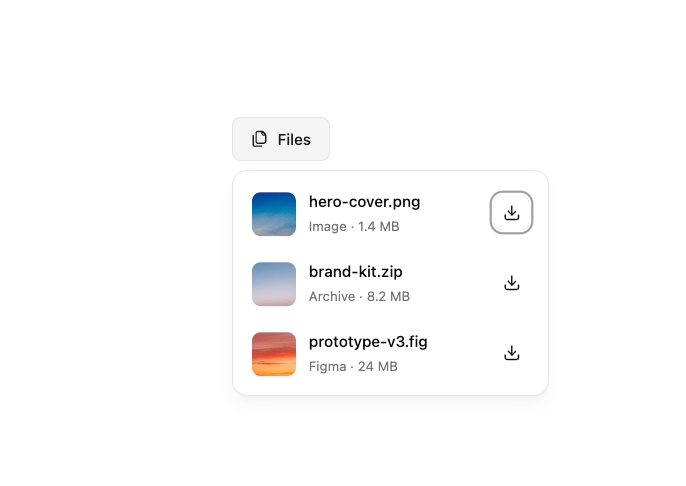
How The Item one is used: the demo's code. The component's own source comes with a free account.
Usage.tsx
'use client'

import { Button } from '@/components/ui/the-item-one'
import {
  Item,
  ItemActions,
  ItemContent,
  ItemDescription,
  ItemGroup,
  ItemMedia,
  ItemTitle,
} from '@/components/ui/item'
import {
  Popover,
  PopoverContent,
  PopoverTrigger,
} from '@/components/ui/popover'
import { DownloadIcon, FilesIcon } from 'lucide-react'

const files = [
  {
    name: 'hero-cover.png',
    meta: 'Image · 1.4 MB',
    thumb:
      'https://cdn.21st.dev/assets/mirror/ee/eeec1a37e3780414f8a2357d3de93562c8f5e7bc8a62bb10546b423e031d260f.jpg',
  },
  {
    name: 'brand-kit.zip',
    meta: 'Archive · 8.2 MB',
    thumb:
      'https://cdn.21st.dev/assets/mirror/e6/e63da817efb8c675c6281da3e124983eaec13735ce7d7e36d8e32451b6625c33.jpg',
  },
  {
    name: 'prototype-v3.fig',
    meta: 'Figma · 24 MB',
    thumb:
      'https://cdn.21st.dev/assets/mirror/da/da4fefcb3f0c49909777ed3159f71d4ad0ca241797aec5d9cb27e1aa898e3350.jpg',
  },
]

export default function Item21() {
  return (
    <Popover>
      <PopoverTrigger asChild>
        <Button variant="outline" className="gap-2">
          <FilesIcon className="size-4 shrink-0" />
          Files
        </Button>
      </PopoverTrigger>

      <PopoverContent
        align="start"
        sideOffset={8}
        className="w-72 rounded-xl p-2"
      >
        <ItemGroup className="flex flex-col gap-1">
          {files.map((file) => (
            <Item
              key={file.name}
              size="xs"
              className="
                flex items-center gap-3
                rounded-lg
                px-2 py-2
                transition-colors
                hover:bg-muted/60
              "
            >
              <ItemMedia className="size-10 shrink-0 overflow-hidden rounded-md">
                <img
                  src={file.thumb}
                  alt={file.name}
                  className="block size-full object-cover"
                />
              </ItemMedia>

              <ItemContent className="min-w-0 flex-1 space-y-0.5">
                <ItemTitle className="truncate text-sm leading-5">
                  {file.name}
                </ItemTitle>

                <ItemDescription className="truncate text-xs leading-4">
                  {file.meta}
                </ItemDescription>
              </ItemContent>

              <ItemActions className="ml-1 shrink-0">
                <Button
                  variant="ghost"
                  size="icon-sm"
                  aria-label={`Download ${file.name}`}
                  className="size-8"
                >
                  <DownloadIcon className="size-4 shrink-0" />
                </Button>
              </ItemActions>
            </Item>
          ))}
        </ItemGroup>
      </PopoverContent>
    </Popover>
  )
}
Dependencies
More by felipemenezes098
View all
Centered Hero with Image Fan
930
Editorial Collage Hero
430
Split Hero With Image Cards
402
Editorial Image Hero
388
Scroll 01
341
Real Estate Search Hero
190
Editorial Hero
173
Hero with Dashboard Mockup
123
More in Buttons
View all

Button
14
Button
34
Texture Button
92
Button Save
46

Button
64

Button Group
3

App Store Button
454

Notification Button
103

