
About
Here is Prime Button component
Built with React and Tailwind. Copy the prompt and paste it into Claude Code, Cursor or Lovable: your agent adds Prime Button to your project and fits it to your theme.
Code
How Prime Button is used: the demo's code. The component's own source comes with a free account.
Usage.tsx
'use client';

import { useState } from 'react';
import { PrimeButton } from '@/components/ui/prime-button';
import { Mail } from 'lucide-react';

export default function DemoPrimeButtonCustomText() {
const [subStatus, setSubStatus] = useState<'idle' | 'loading' | 'success' | 'error'>('idle');
const [connectStatus, setConnectStatus] = useState<'idle' | 'loading' | 'success' | 'error'>('idle');

const handleSuccessFlow = () => {
  setSubStatus('loading');
  setTimeout(() => setSubStatus('success'), 2000);
};

const handleErrorFlow = () => {
  setConnectStatus('loading');
  // Simulate a network failure
  setTimeout(() => setConnectStatus('error'), 2000);
};

// NOTE: This layout uses container queries (@sm, @lg, etc.).
// For this to work in your own application, the parent element of this component
// must have the Tailwind CSS class "@container".
return (
  <div className="grid w-full grid-cols-1 gap-8 rounded-lg border border-dashed bg-background p-8 @md:grid-cols-2">

    {/* Customized Success Messages */}
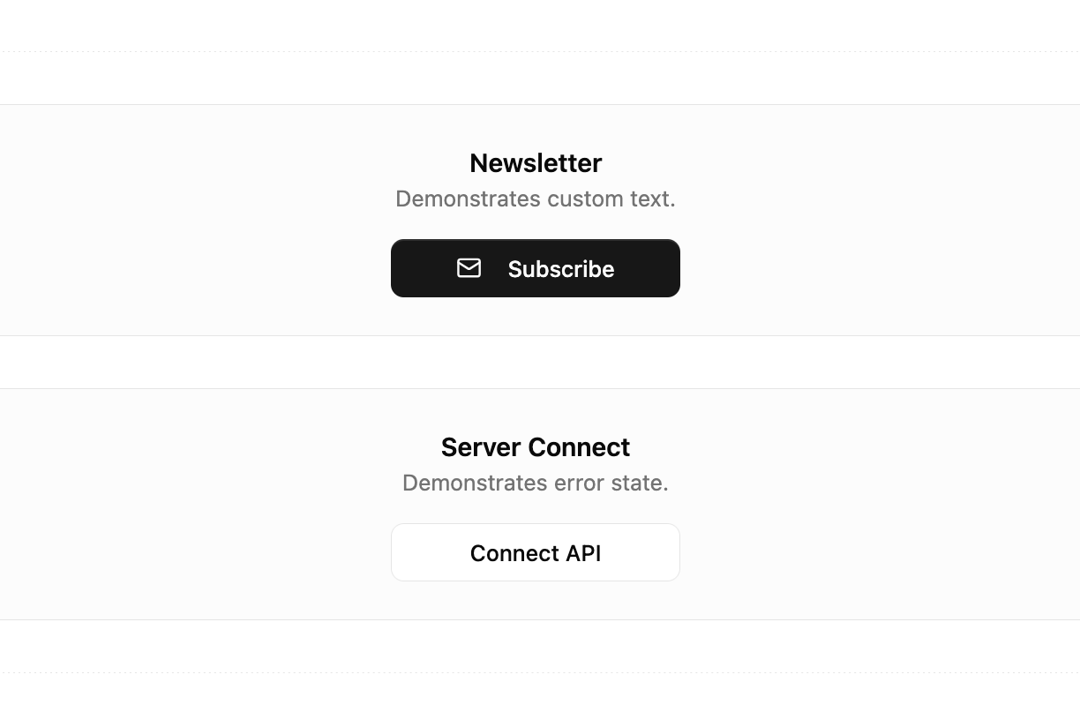
    <div className="flex flex-col items-center justify-center gap-4 rounded-md border bg-muted/30 p-6">
      <div className="text-center">
        <h3 className="font-semibold">Newsletter</h3>
        <p className="text-sm text-muted-foreground">Demonstrates custom text.</p>
      </div>
      <PrimeButton
        actionState={subStatus}
        onClick={handleSuccessFlow}
        loadingText="Joining..."
        successText="You're in!"
        className="w-full max-w-[180px]"
      >
        <Mail className="mr-2 h-4 w-4" />
        Subscribe
      </PrimeButton>
    </div>

    {/* Error Handling Scenario */}
    <div className="flex flex-col items-center justify-center gap-4 rounded-md border bg-muted/30 p-6">
      <div className="text-center">
        <h3 className="font-semibold">Server Connect</h3>
        <p className="text-sm text-muted-foreground">Demonstrates error state.</p>
      </div>
      <PrimeButton
        variant="outline"
        actionState={connectStatus}
        onClick={handleErrorFlow}
        loadingText="Connecting..."
        errorText="Failed"
        className="w-full max-w-[180px]"
      >
        Connect API
      </PrimeButton>
    </div>

  </div>
);
}
Dependencies
More by iamsatish4564
View all

Portfolio and Image Gallery
1K
Micro Expander
352
Animated Profile Card
136
Morph Button
110
Curtain Button
76
Eclipse Button
39
More in Buttons
View all
Button Save
46

Button
20
Button
6

Button
14

Button Group
37

Button
32
Split Button
32

App Store Button
454

