
About
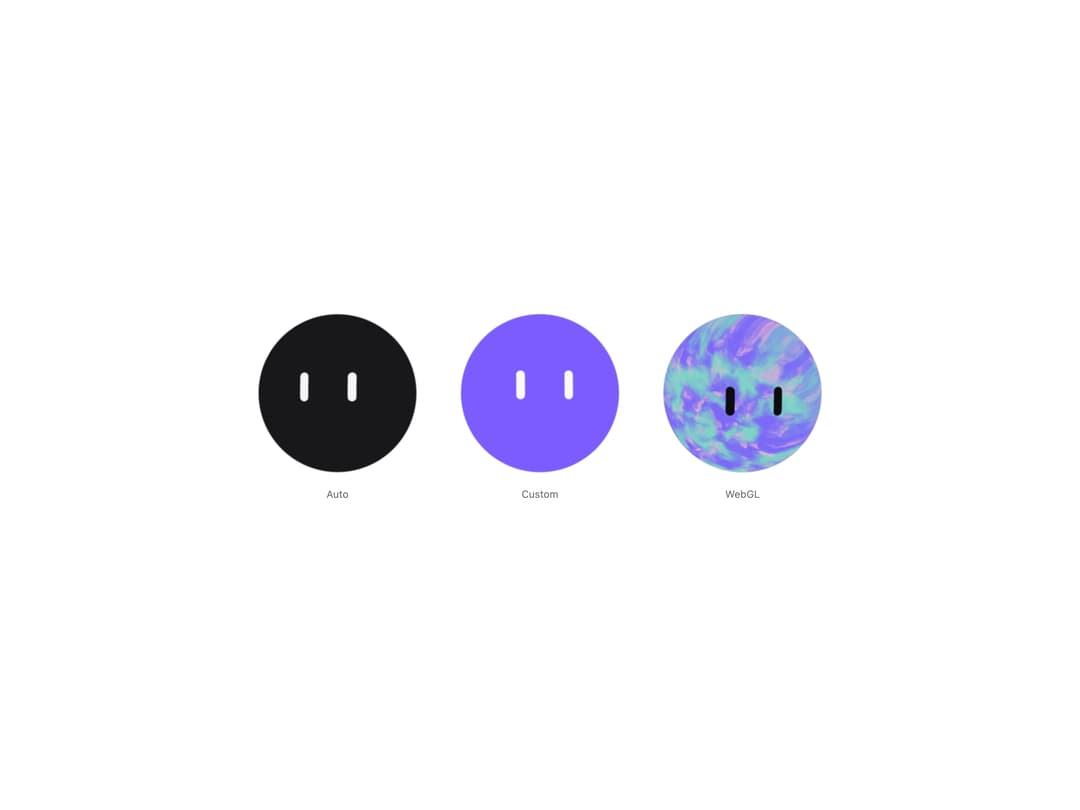
An evenly lit sphere with two capsule eyes that follow the pointer: white, black, webgl, and custom variants.
Built with React and Tailwind. Copy the prompt and paste it into Claude Code, Cursor or Lovable: your agent adds Live Orb to your project and fits it to your theme.
Code
How Live Orb is used: the demo's code. The component's own source comes with a free account.
Usage.tsx
"use client"

import { LiveOrb } from "@/components/ui/live-orb"

const settings = {
  size: 200,
  interactive: true,
  blink: true,
  color: "#7C5CFF",
  eyeColor: "#FAFAFA",
  colors: ["#7C6AF7", "#7DD3C7", "#E8B4D4"],
}

export default function LiveOrbDemo(props: Partial<typeof settings>) {
  const s = { ...settings, ...props }

  return (
    <div className="flex min-h-[520px] w-full flex-wrap items-center justify-center gap-x-10 gap-y-8 bg-background p-4 text-foreground">
      {/* No variant: white on dark pages, black on light ones. */}
      <figure className="flex flex-col items-center gap-3">
        <LiveOrb
          size={s.size}
          interactive={s.interactive}
          blink={s.blink}
        />
        <figcaption className="text-xs text-muted-foreground">Auto</figcaption>
      </figure>
      <figure className="flex flex-col items-center gap-3">
        <LiveOrb
          variant="custom"
          size={s.size}
          color={s.color}
          eyeColor={s.eyeColor}
          interactive={s.interactive}
          blink={s.blink}
        />
        <figcaption className="text-xs text-muted-foreground">
          Custom
        </figcaption>
      </figure>
      <figure className="flex flex-col items-center gap-3">
        <LiveOrb
          variant="webgl"
          size={s.size}
          colors={s.colors}
          interactive={s.interactive}
          blink={s.blink}
        />
        <figcaption className="text-xs text-muted-foreground">WebGL</figcaption>
      </figure>
    </div>
  )
}
More by jay sharma
View all

Chrome Button
181
Frame Button
131
Highlight Button
75
ASCII Fluid
72
Motion Button
59
Brutal Button
53
Grid Button
49
Shader Metal
43