About
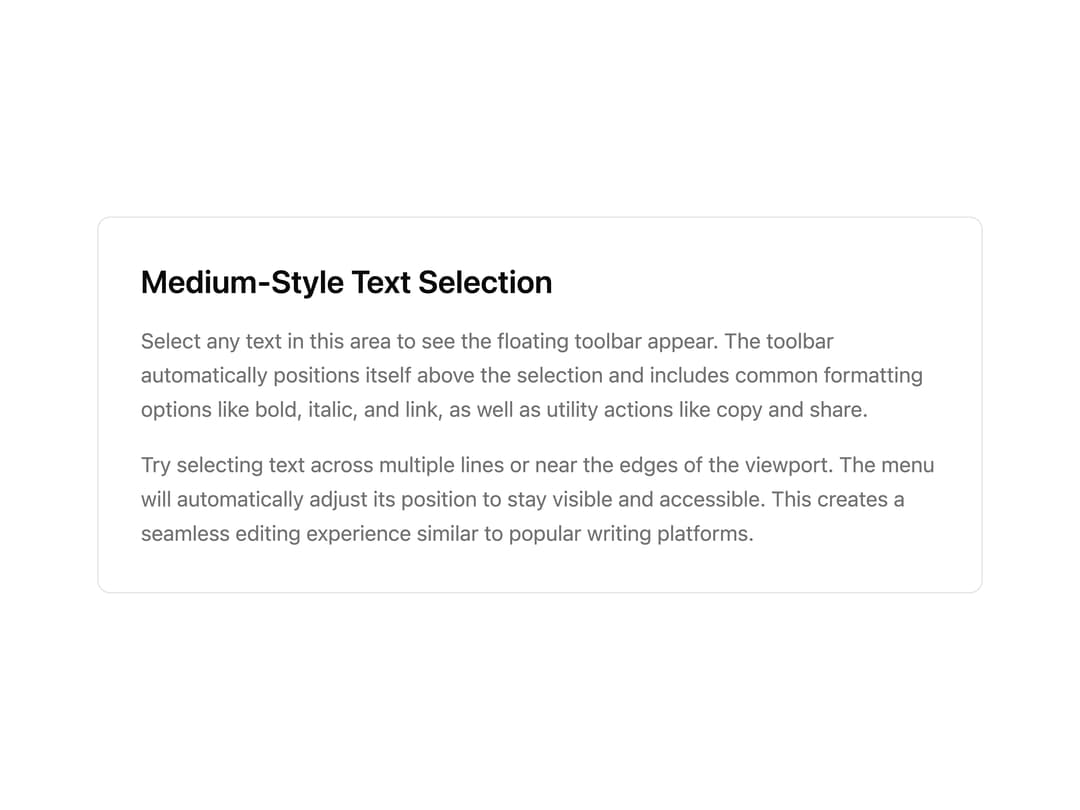
A floating toolbar that appears above selected text (like Medium's editor) with formatting/action buttons positioned automatically to avoid viewport collisions.
Built with React and Tailwind. Copy the prompt and paste it into Claude Code, Cursor or Lovable: your agent adds Selection Toolbar to your project and fits it to your theme.
Code
How Selection Toolbar is used: the demo's code. The component's own source comes with a free account.
Usage.tsx
"use client";

import {
  SelectionToolbar,
  SelectionToolbarItem,
  SelectionToolbarSeparator,
} from "@/components/ui/selection-toolbar";
import { Bold, Copy, Italic, Link, Share2 } from "lucide-react";
import * as React from "react";

export default function SelectionToolbarDemo() {
  const containerRef = React.useRef<HTMLDivElement>(null);

  const wrapSelection = React.useCallback((tagName: string) => {
    const selection = window.getSelection();
    if (!selection || selection.rangeCount === 0) return;

    const range = selection.getRangeAt(0);
    const selectedText = range.toString();
    if (!selectedText) return;

    const wrapper = document.createElement(tagName);
    try {
      range.surroundContents(wrapper);
      // Re-select the wrapped content to allow multiple formatting actions
      selection.removeAllRanges();
      const newRange = document.createRange();
      newRange.selectNodeContents(wrapper);
      selection.addRange(newRange);
    } catch {
      // Fallback: extract, wrap, and insert
      wrapper.textContent = selectedText;
      range.deleteContents();
      range.insertNode(wrapper);
      // Re-select the wrapped content
      selection.removeAllRanges();
      const newRange = document.createRange();
      newRange.selectNodeContents(wrapper);
      selection.addRange(newRange);
    }
  }, []);

  const onBold = React.useCallback(() => {
    wrapSelection("strong");
    console.log({ action: "bold" });
  }, [wrapSelection]);

  const onItalic = React.useCallback(() => {
    wrapSelection("em");
    console.log({ action: "italic" });
  }, [wrapSelection]);

  const onLink = React.useCallback(() => {
    const selection = window.getSelection();
    if (!selection || selection.rangeCount === 0) return;

    const url = prompt("Enter URL:");
    if (!url) return;

    const range = selection.getRangeAt(0);
    const link = document.createElement("a");
    link.href = url;
    link.className = "text-primary underline hover:text-primary/80";

    try {
      range.surroundContents(link);
      // Re-select the linked content
      selection.removeAllRanges();
      const newRange = document.createRange();
      newRange.selectNodeContents(link);
      selection.addRange(newRange);
    } catch {
      link.textContent = range.toString();
      range.deleteContents();
      range.insertNode(link);
      // Re-select the linked content
      selection.removeAllRanges();
      const newRange = document.createRange();
      newRange.selectNodeContents(link);
      selection.addRange(newRange);
    }

    console.log({ action: "link", url });
  }, []);

  const onCopy = React.useCallback((text: string) => {
    navigator.clipboard.writeText(text);
    console.log({ action: "copy", text });

    // Clear selection to close the toolbar
    const selection = window.getSelection();
    if (selection) {
      selection.removeAllRanges();
    }
  }, []);

  const onShare = React.useCallback((text: string) => {
    if (navigator.share) {
      navigator.share({ text });
    }
    console.log({ action: "share", text });

    // Clear selection to close the toolbar
    const selection = window.getSelection();
    if (selection) {
      selection.removeAllRanges();
    }
  }, []);

  return (
    <div className="flex min-h-[400px] w-full items-center justify-center">
      <div
        ref={containerRef}
        contentEditable
        suppressContentEditableWarning
        className="max-w-2xl space-y-4 rounded-lg border bg-card p-8 text-card-foreground outline-none focus-visible:border-ring focus-visible:ring-[3px] focus-visible:ring-ring/50"
      >
        <h2 className="text-2xl font-semibold">Medium-Style Text Selection</h2>
        <p className="leading-relaxed text-muted-foreground">
          Select any text in this area to see the floating toolbar appear. The
          toolbar automatically positions itself above the selection and
          includes common formatting options like bold, italic, and link, as
          well as utility actions like copy and share.
        </p>
        <p className="leading-relaxed text-muted-foreground">
          Try selecting text across multiple lines or near the edges of the
          viewport. The menu will automatically adjust its position to stay
          visible and accessible. This creates a seamless editing experience
          similar to popular writing platforms.
        </p>

        <SelectionToolbar container={containerRef}>
          <SelectionToolbarItem onSelect={onBold}>
            <Bold />
          </SelectionToolbarItem>
          <SelectionToolbarItem onSelect={onItalic}>
            <Italic />
          </SelectionToolbarItem>
          <SelectionToolbarItem onSelect={onLink}>
            <Link />
          </SelectionToolbarItem>
          <SelectionToolbarSeparator />
          <SelectionToolbarItem onSelect={onCopy}>
            <Copy />
          </SelectionToolbarItem>
          <SelectionToolbarItem onSelect={onShare}>
            <Share2 />
          </SelectionToolbarItem>
        </SelectionToolbar>
      </div>
    </div>
  );
}
Dependencies
More by Dice UI
View all

Compare Slider
75
Sortable
49
Circular Progress
41
Status
28
Pending
27
Banner
19
Stack
8
Scroller
5