
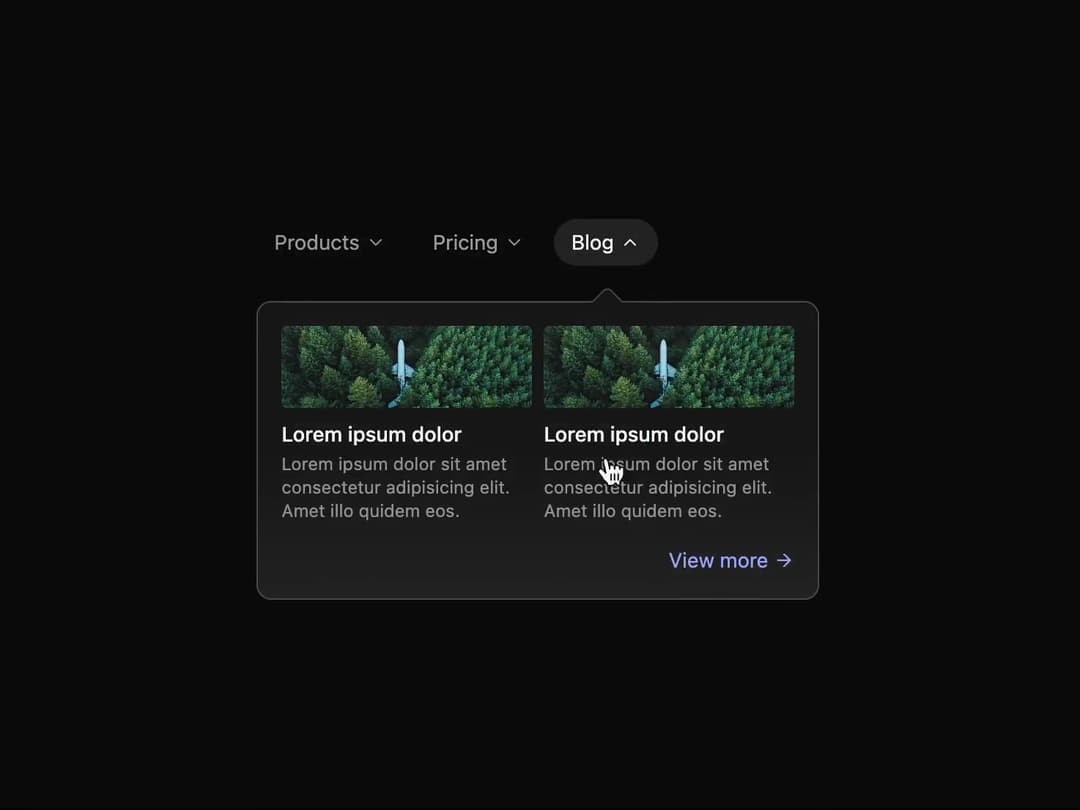
This code implements a reusable React component that creates an animated tabbed interface with a shifting content overlay. It addresses the need for a visually engaging and interactive way to present different sections of content, such as product details, pricing plans, or blog posts. The component uses several libraries to achieve this: React for the core UI, Framer Motion for animations, and React Icons for providing visual elements. Here's a step-by-step breakdown: 1. **`ShiftingDropDown` Component:** This is the main container, holding the `Tabs` component. 2. **`Tabs` Component:** This manages the selected tab state using `useState` hooks for `selected` (the currently selected tab index) and `dir` (direction of animation, 'l' or 'r'). The `handleSetSelected` function updates these states based on mouse events, determining the animation direction. 3. **`Tab` Component:** Each tab is rendered as a button. The styling changes based on whether it's selected, using CSS classes and the `selected` prop. The `FiChevronDown` icon animates on selection. 4. **`Content` Component:** This displays the content for the selected tab. `AnimatePresence` ensures smooth entrance and exit animations for the content using Framer Motion's `initial`, `animate`, and `exit` properties. The `motion.div` smoothly animates the content's position based on the `dir` prop (left or right). 5. **`Bridge` Component:** A simple visual element that creates a bridge connecting the tab to the content. 6. **`Nub` Component:** This dynamically positioned element visually points to the selected tab. `useEffect` and `getBoundingClientRect` are used to calculate its position relative to the selected tab. 7. **Content Components (`Products`, `Pricing`, `Blog`):** These components render the actual content for each tab, using basic HTML elements and styling. 8. **`TABS` Array:** This array defines the data for each tab, mapping titles to their corresponding content components. Example Scenarios: - Displaying product features, pricing tiers, or blog posts. - Creating an interactive FAQ section. - Presenting different views or options within a dashboard. - Implementing a step-by-step guide or tutorial. The component leverages the power of React's state management and Framer Motion's animation capabilities to create a polished and user-friendly experience. The use of CSS classes and inline styles allows for easy customization and theming.
Built with React and Tailwind. Copy the prompt and paste it into Claude Code, Cursor or Lovable: your agent adds Animated Shifting Tab Component to your project and fits it to your theme.
Code
How Animated Shifting Tab Component is used: the demo's code. The component's own source comes with a free account.
Usage.tsx
import {ShiftingDropDown} from "@/components/ui/animated-shifting-tab-component";

export default function DemoOne() {
  return <ShiftingDropDown />;
}
Dependencies
More by Sonu kumar
View all
Dashboard with Collapsible Sidebar
2.4K
Modern Hero
1.4K
Text Parallax Content (scroll)
1.2K
About Us section
1.2K
Modern Animated Hero Section
1.1K
Animated Hero Section
689
Cuisine Selector Chips
585
Bounce card features
573
More in Navigation
View all

Sidebar
234

Tabs
60
Newsletter Signup Footer
16
Progress Bar Stepper
36

Footer 2
201
Navbar with Theme Toggle
43

Navbar
71

Pagination
86
