
About
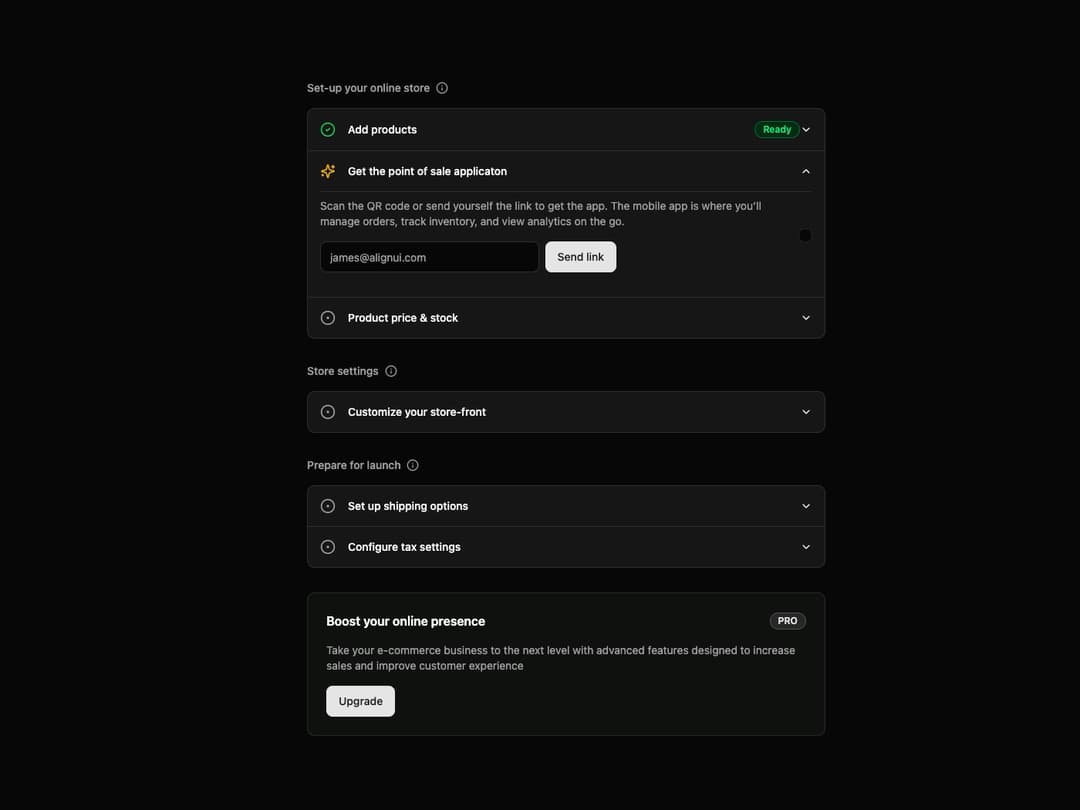
Onboarding Checklist A dynamic, multi-section checklist component designed for user onboarding flows. It features collapsible steps with different states (completed, in-progress, pending) and supports custom content within each step, including an optional promotional upgrade card.
Built with React and Tailwind. Copy the prompt and paste it into Claude Code, Cursor or Lovable: your agent adds Onboarding Checklist to your project and fits it to your theme.
Code
How Onboarding Checklist is used: the demo's code. The component's own source comes with a free account.
Usage.tsx
// demo.tsx

import React from 'react';
import { OnboardingChecklist } from '@/components/ui/onboarding-checklist';
import { Input } from '@/components/ui/input';
import { Button } from '@/components/ui/button';

// Demo component to showcase OnboardingChecklist
export default function OnboardingChecklistDemo() {

  // 1. Define the data structure for the checklist
  const onboardingSections = [
    {
      title: "Set-up your online store",
      steps: [
        {
          title: "Add products",
          status: "completed" as const,
          children: <p className="text-sm text-muted-foreground">You've successfully added your first product. Add more to populate your store.</p>,
        },
        {
          title: "Get the point of sale applicaton",
          status: "inProgress" as const,
          children: (
            <div className="flex flex-col md:flex-row items-center gap-6">
              <div className="flex-1 space-y-2">
                <p className="text-sm text-muted-foreground">
                  Scan the QR code or send yourself the link to get the app. The mobile app is where you’ll manage orders, track inventory, and view analytics on the go.
                </p>
                <div className="flex w-full max-w-sm items-center space-x-2 pt-2">
                  <Input type="email" placeholder="james@alignui.com" />
                  <Button type="submit">Send link</Button>
                </div>
              </div>
              <div className="flex-shrink-0 p-2 border bg-background rounded-md">
                               </div>
            </div>
          ),
        },
        {
          title: "Product price & stock",
          status: "pending" as const,
          children: <p className="text-sm text-muted-foreground">Set the price and available stock for all your products.</p>,
        },
      ],
    },
    {
      title: "Store settings",
      steps: [
        {
          title: "Customize your store-front",
          status: "pending" as const,
          children: <p className="text-sm text-muted-foreground">Choose a theme and customize the look and feel of your online store.</p>,
        },
      ],
    },
    {
      title: "Prepare for launch",
      steps: [
        {
          title: "Set up shipping options",
          status: "pending" as const,
          children: <p className="text-sm text-muted-foreground">Configure your shipping rates and zones for your customers.</p>,
        },
        {
          title: "Configure tax settings",
          status: "pending" as const,
          children: <p className="text-sm text-muted-foreground">Set up tax rules for your products based on your location and regulations.</p>,
        },
      ],
    },
  ];

  // 2. Define the data for the optional upgrade card
  const upgradeDetails = {
    title: "Boost your online presence",
    description: "Take your e-commerce business to the next level with advanced features designed to increase sales and improve customer experience",
    onUpgrade: () => alert("Upgrade button clicked!"),
  };

  // 3. Render the component with the defined props
  return (
    <div className="w-full bg-background flex items-center justify-center p-4">
       <OnboardingChecklist sections={onboardingSections} upgradeCard={upgradeDetails} />
    </div>
  );
}
Dependencies
More by Kavi Katiyar
View all

3D Card
982
Bento Product Features
831
Testimonial Slider
716
Card
608
Order Confirmation Card
504
Project Detail View
408
Animated Card
394
State
393