
About
A draggable, non-modal panel that floats above the page without blocking it, for an inspector, a help chat, or a tool palette that needs to stay open while you keep working.
Built with React and Tailwind. Copy the prompt and paste it into Claude Code, Cursor or Lovable: your agent adds Floating Panel to your project and fits it to your theme.
Code
How Floating Panel is used: the demo's code. The component's own source comes with a free account.
Usage.tsx
"use client";

import { FloatingPanel } from "@/components/ui/floating-panel";
import type { FloatingPanelPosition } from "@/components/ui/floating-panel";
import { useState } from "react";

export default function FloatingPanelDemo() {
  const [open, setOpen] = useState(false);
  const [position, setPosition] = useState<FloatingPanelPosition | undefined>(
    undefined,
  );
  const [container, setContainer] = useState<HTMLDivElement | null>(null);

  return (
    <div className="relative flex h-screen w-full items-center justify-center bg-background p-10">
      <button
        type="button"
        onClick={() => setOpen(true)}
        className="inline-flex h-9 items-center rounded-md border border-border bg-background px-4 text-sm font-medium text-foreground shadow-sm transition-colors hover:bg-muted"
      >
        Show inspector
      </button>

      {/* A `transform` makes this div the containing block for the panel's
          `position: fixed`, so a panel dragged around stays within this
          demo frame instead of flying across the whole embedding page. */}
      <div
        ref={setContainer}
        className="absolute inset-0 overflow-hidden"
        style={{ transform: "translateZ(0)" }}
      />

      {container && (
        <FloatingPanel
          open={open}
          onClose={() => setOpen(false)}
          title="Inspector"
          defaultPosition={position ?? { x: 300, y: 40 }}
          onPositionChange={setPosition}
          container={container}
        >
          <p className="text-sm text-ink-soft">
            Drag the title bar, or focus the grip and use the arrow keys.
          </p>
        </FloatingPanel>
      )}
    </div>
  );
}
More by klyv-ui
View all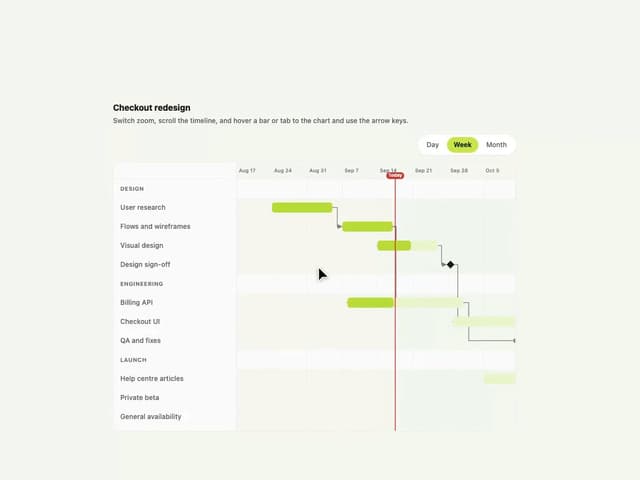
Gantt Chart
56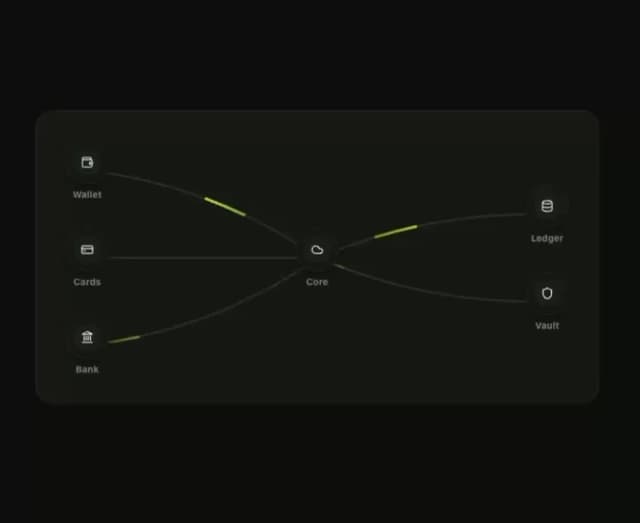
Klyv Animated Beam
47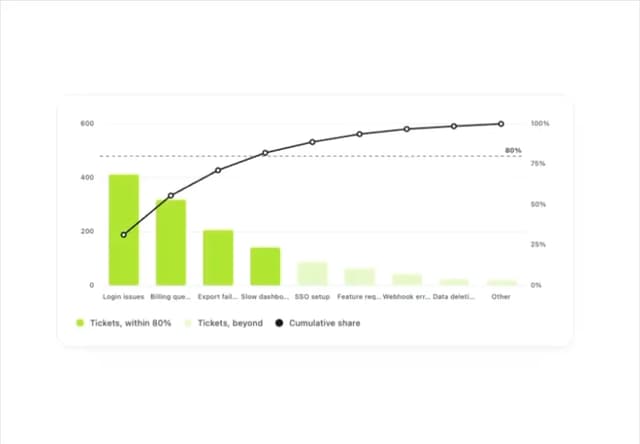
Pareto Chart
40
Shader Canvas
35
Sunburst Chart
23
Morphing Text
21
Gooey Loader
20
Gravity Tags
17